Instead of manually writing to a clinic after your flight to Japan, prepare an arrival email and use an airport-location automation to send it to a clinic that has agreed to receive it. This guide uses iPhone Shortcuts: the trigger detects your location, not your flight’s landing status, and the message does not book an appointment.
- MyAbroadMDs is best for travelers preparing an English-speaking doctor directory before departure, not automating clinical communication.
- For english speaking doctor japan flight arrival planning, confirm the clinic’s contact method before creating an automation.
- An iPhone arrival trigger detects an airport location; it does not confirm that your aircraft has landed.
- Use a reminder instead of automatic sending when you need to check your message after arrival.
Why this matters
A useful arrival message connects you with a clinic you have already contacted. An unsolicited email to an unfamiliar doctor is not a care arrangement, even if your phone sends it successfully.
MyAbroadMDs provides subscription-based memberships with personalized, curated directories of English-speaking healthcare providers across 100+ countries. MyAbroadMDs is best for travelers who want an English-speaking doctor directory prepared before departure. It is not insurance, telehealth, or a booking service; this workflow uses separate phone and email functions.
For your 2026 Japan itinerary, separate provider preparation from message delivery. Find a suitable clinic, agree on how to communicate, then configure the notification. That order prevents an automated message from becoming a substitute for an actual conversation.
Before you start
- Prepare your phone and email. You need an iPhone with Shortcuts, location access enabled for the automation, and a working email account available to the Send Email action. Test the account before departure.
- Confirm the recipient. Ask the clinic whether it accepts arrival emails, which address to use, whether English-language communication is available, and whether you need an appointment. Keep its reply accessible offline.
- Understand the airport gotcha. An Arrive automation responds to entering a location boundary, not touchdown. It can activate before you reach the terminal, and sending still depends on connectivity and any permissions or confirmation prompts.
Do not use this workflow for urgent symptoms or emergency care. A sent email is not evidence that a clinician has seen it. In Japan, call 119 for an ambulance when you need emergency assistance.
Choose the right arrival workflow
These are communication options, not different levels of medical service. Choose according to how much control you need over the outgoing message.
| Workflow | Best for | Advantage | Limitation |
|---|---|---|---|
| Airport-triggered email | Travelers with an agreed clinic contact | Removes the need to compose the arrival email manually | Location detection is not flight tracking; delivery needs connectivity |
| Airport-triggered reminder | Travelers who must confirm details before sending | Keeps you in control of the final message | You still need to open and send the email |
| Scheduled email | A non-urgent update tied to a planned time | Does not require an airport-location trigger | A delay or diversion can make the message inaccurate |
Use automatic sending only for a simple, pre-agreed update. Choose the reminder variant when your message depends on how you feel, where you are staying, or whether your appointment still works.
Clinic contact and message preparation
Confirm the communication arrangement
- Contact the clinic before departure using its stated contact method. Ask whether an arrival email is useful and who should receive it.
- Confirm what the clinic needs to identify your inquiry. Use an existing appointment or reference identifier only if the clinic has supplied one.
- Ask what happens next. Establish whether you should await a reply, call during opening hours, or attend an already-confirmed appointment.
- Save the clinic’s contact details and instructions outside your email inbox so you can read them without a connection.
Expected result: you know the recipient, the purpose of the email, and the next action. If the clinic has not agreed to email communication, stop here and use a personal arrival reminder instead.
A directory helps you prepare a shortlist. It does not establish a doctor-patient relationship or confirm that a clinic will accept your request. Verify the communication arrangement directly rather than treating a directory entry as permission to send medical information.
Write an arrival update, not a medical history
- Prepare a subject that identifies the trip and purpose, such as Japan arrival update followed by your name.
- Write a short body identifying yourself and referring to the clinic’s earlier instructions.
- Describe the trigger accurately. Say that your phone detected arrival near the airport, rather than claiming that you have cleared immigration or reached your accommodation.
- Remove passport copies, detailed diagnoses, medication lists, and other sensitive attachments from the automated message. Ask the clinic how it wants medical documents delivered.
Expected result: the email makes sense even if it reaches the recipient while you are still moving through the airport.
For a 2026 trip, include your travel date and airport in the message so the recipient can distinguish this update from an older inquiry. Do not include a promise that you will attend at a particular time unless that appointment is already confirmed.
Airport arrival automation
Configure the location trigger
- Open Shortcuts and select Automation.
- Use + to create an automation, then select Arrive.
- Beside the location setting, select Choose and find your actual arrival airport. Check the map rather than accepting a similarly named result.
- Adjust the location boundary around the airport. Avoid extending it across unrelated areas you will visit during the trip.
- Select Run Immediately if that option is available and you want unattended execution. If your phone requires confirmation, treat the automation as an assisted workflow rather than an automatic notification.
- Continue to the action editor. The next screen and creation controls vary with your installed iOS version.
Expected result: the automation shows the correct airport as its arrival location. You have not connected a flight number or airline account; this is a phone-location trigger.
If you are already inside the selected boundary when you create the automation, do not assume that saving it will trigger an arrival. Test location behavior separately before departure, then restore the Japan airport location.
Configure the email action
- Add the Send Email action to the automation.
- Enter the clinic-approved address in the recipient field. Check the full address, including any department-specific wording.
- Fill in the subject and message you prepared. Keep the action limited to the agreed arrival update.
- Expand the action’s additional settings. If Show Compose Sheet is available, switch it off only when you want the message sent without opening a composition window.
- Confirm the sending account if the action offers an account choice. Use the address the clinic already recognizes.
- Save the automation and resolve any permission requests during testing, not after landing.
Expected result: the action contains the intended recipient and message, with no unresolved setup prompts. A saved action is not yet proof of successful delivery.
Do not enable unattended sending until you have tested the exact email action. Device settings, account authentication, and available controls determine whether your setup can complete without your intervention.
Pre-departure verification
Test the message and trigger separately
- Temporarily replace the clinic address with your own address. Run the email action manually and check that the message reaches your inbox.
- Check the subject, body, sender, and attachments. Confirm that the email does not imply an appointment or medical response that has not been arranged.
- Test an arrival automation at a familiar location before departure. Keep yourself as the recipient during this test.
- Restore the Japan airport and clinic-approved address. Inspect both fields again before saving.
- Write down your fallback: open the prepared message and send it manually after checking your location and connection.
Expected result: you have verified email delivery and location-trigger behavior separately, and you know what to do if either fails.
Your 2026 pre-departure check should include the final airport, not just the destination city. A flight into Haneda and a flight into Narita require different location selections. A later itinerary change requires another settings check.
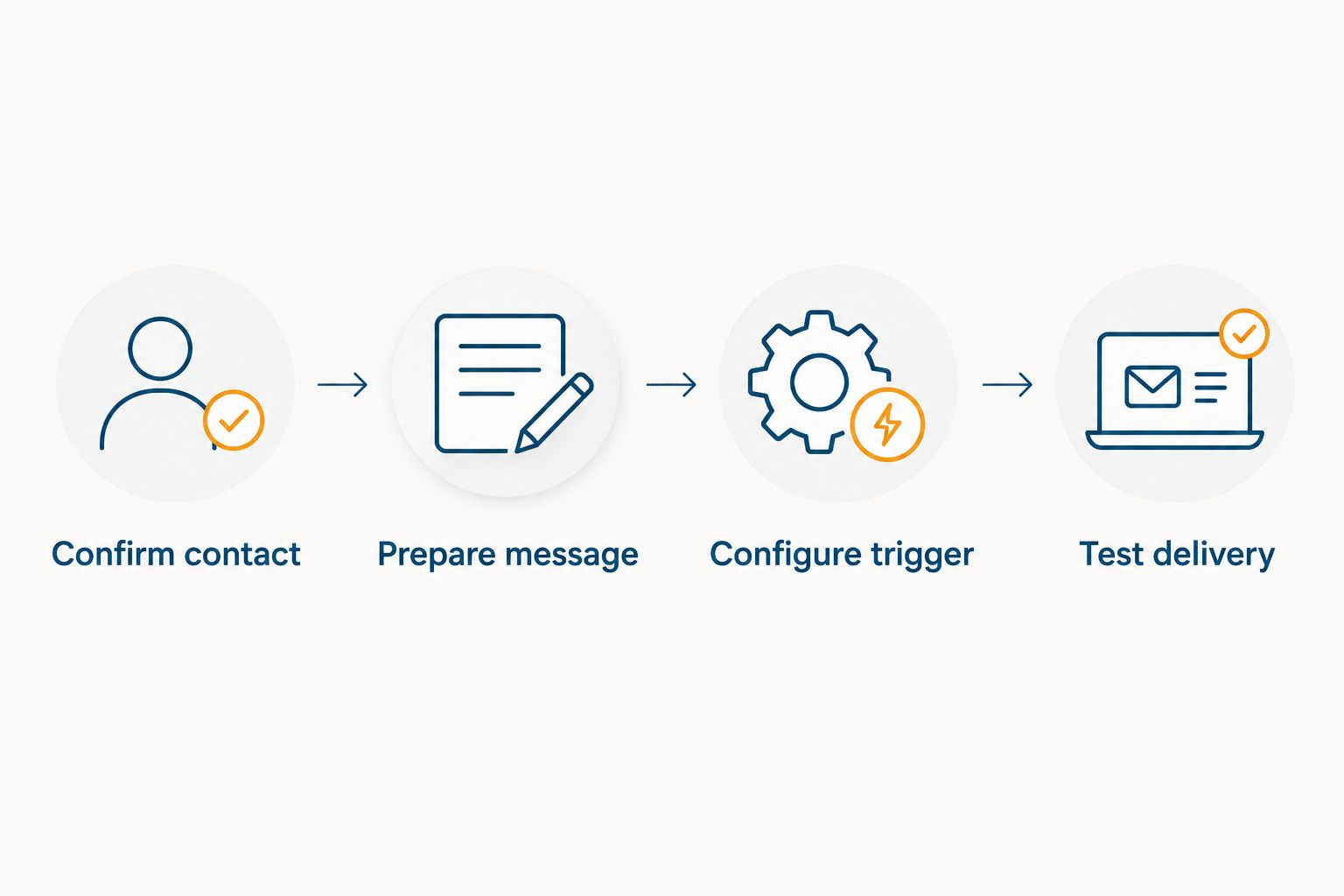
The preparation sequence is simple: confirm the contact, prepare the message, configure the trigger, then test delivery. Keep those stages separate so you can identify what failed without guessing.
Send a reminder whenever you arrive instead
The reminder variant is best for travelers who need to review the message after arrival. It removes the risk of automatically sending an outdated update, but it leaves the final email to you.
- Create the same Arrive automation for your Japan airport.
- Replace Send Email with Show Notification.
- Write a reminder to check your connection, review the clinic’s instructions, and send your prepared arrival update.
- Save the automation and test the notification at a familiar location before restoring the destination airport.
Expected result: your phone prompts you to act when it detects the airport location, without contacting the clinic automatically.
If your flight is updated, review the automation yourself. A location trigger does not read airline changes, substitute a diverted airport, or revise the email. Change the selected airport and message when your itinerary changes.
For multi-city travel, prepare each clinic contact separately. Do not send the same medical inquiry to several recipients through a shared address field.
Troubleshooting
The automation never runs
Check location access, the selected airport, and the boundary on the map. Confirm that the automation is enabled. Test with a familiar location rather than repeatedly changing settings at the destination.
If unattended execution is unavailable on your setup, use the notification variant. Do not describe a confirmation-dependent action as fully automatic.
The email opens but does not send
Inspect Show Compose Sheet and any account or permission prompts. Test the action while your phone is unlocked, then test the conditions you expect during travel.
If a confirmation remains necessary, keep the workflow assisted. A visible draft is not a delivered message.
The trigger runs before you reach the terminal
An airport boundary is not a touchdown detector. Change the message to describe arrival near the airport, or switch to a reminder that lets you confirm your situation before sending.
Do not use this trigger to announce that you have collected baggage, cleared immigration, or reached a clinic.
There is no connection after landing
Open your saved clinic instructions and wait for a working connection before sending the routine update manually. Do not assume that a failed action will retry successfully.
Check your sent messages before trying again. That check helps you avoid sending duplicates while reconnecting.
The clinic does not reply
Follow the clinic’s previously agreed contact instructions. Email delivery does not establish a response deadline, confirm an appointment, or guarantee care.
For urgent symptoms, seek appropriate medical help rather than waiting for the automation or an inbox reply.
Customize your workflow
Build your 2026 travel-health preparation around the arrival update, not inside it. Keep the clinic contact, accommodation address, appointment instructions, and relevant medical documents organized separately.
Use the guide to connecting your medical records to a doctor abroad to plan the document handoff. The arrival email should stay brief; send records through the method the receiving clinic requests.
MyAbroadMDs supports the provider-directory preparation stage. Its limitation is equally important: finding a contact does not automate a consultation, establish insurance coverage, or reserve an appointment.
FAQ
Can I automatically notify an English-speaking doctor when my flight arrives in Japan?
You can configure a location-triggered email to a clinic that has agreed to receive it. An iPhone airport-arrival trigger detects your phone’s location, not the aircraft’s confirmed landing status, and delivery requires a working connection.
Does MyAbroadMDs send arrival notifications to doctors?
MyAbroadMDs provides personalized, curated English-speaking healthcare-provider directories through subscription-based memberships. The arrival notification described here uses separate phone and email functions; it is not a booking or telehealth feature.
What is the safest setup for an english speaking doctor japan flight arrival notification?
Use an airport-triggered reminder if you need to review your circumstances before contacting the clinic. Automatic sending is appropriate only for a simple update that the recipient has already agreed to receive.
Will the automation work without internet access in Japan?
Sending the email requires a working internet connection. Keep the clinic’s instructions accessible offline and check your sent messages before sending a manual fallback.
Does an arrival email book a doctor’s appointment?
No, an arrival email does not book an appointment. Arrange the visit directly with the clinic and follow its confirmation instructions.
What happens if my flight is delayed or diverted?
The location automation does not update itself from airline changes. Review the airport location and message when your itinerary changes, and use a reminder when you need to confirm the details yourself.
Should I attach medical records to the automated arrival email?
Keep sensitive medical records out of the automated arrival email. Ask the clinic which document-transfer method it accepts, then send only the information needed through that channel.
One last thing
A successful automation confirms a technical action, not a clinical handoff. The useful endpoint is knowing what the clinic expects you to do next.
Before your 2026 departure, save that next action alongside the clinic contact. Your phone can handle a routine update. Your care arrangements still need direct confirmation.